Today we’re exploring something that’s quietly transforming how developers work inside Cursor, and it’s a capability we’ve been watching accelerate at a remarkable pace throughout 2025 and into 2026.
Yes, we’re talking about MCP — Model Context Protocol — and more specifically, how you can connect Cursor to 100+ MCP servers and turn your AI coding assistant into something that genuinely understands your entire workflow stack.
If you’ve ever felt like Cursor is powerful but isolated — great at writing code but blind to your GitHub issues, your Notion docs, your database schema, or your Slack conversations — this guide is exactly what you’ve been waiting for.
By the end of this MCP server connection guide, you’ll know what MCP actually is, why it matters, how to configure Cursor to connect to multiple servers, which servers are worth your time, and how to troubleshoot common issues. Let’s get into it.
What Is MCP and Why Should Cursor Users Care?
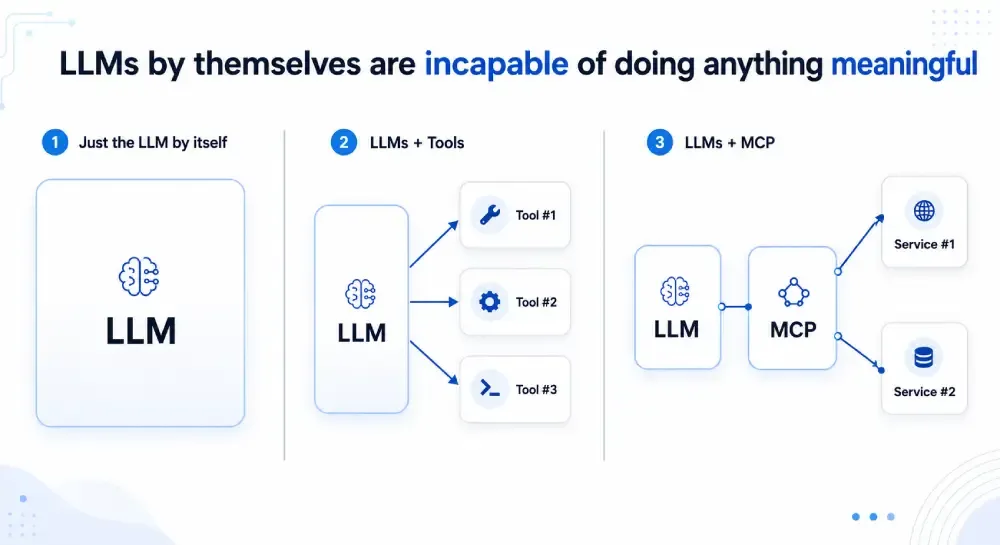
MCP, or Model Context Protocol, is an open standard introduced by Anthropic that allows AI systems to connect with external tools, data sources, and services through a unified interface. Think of it as a universal plug system — instead of every AI tool building custom integrations for every service, MCP creates a shared protocol that any compatible client (like Cursor) can use to talk to any compatible server (like GitHub, Postgres, Notion, or Stripe).
For Cursor users specifically, this is a significant leap. Cursor’s Canvas feature already brought a more visual, context-aware coding experience. MCP takes that further by giving your AI assistant real-time access to external context — your actual project data, live APIs, and third-party tools — without you manually copy-pasting information into the chat.
Before MCP, your AI coding workflow had hard walls. After MCP, those walls start to come down.
Understanding the MCP Architecture Before You Connect
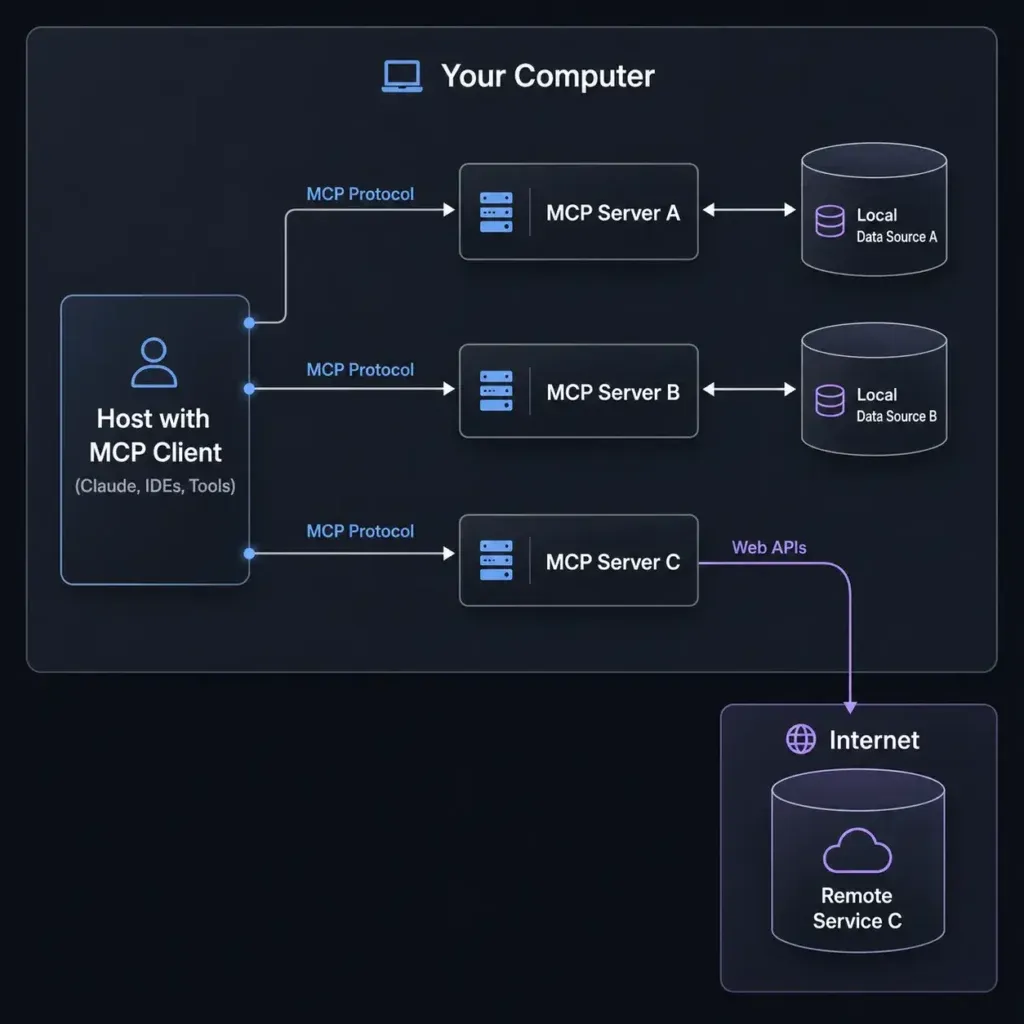
Before jumping into configuration, it helps to understand what you’re actually setting up.
MCP Hosts, Clients, and Servers
The MCP ecosystem has three layers:
- Hostsare the applications running the AI — in this case, Cursor.
- Clientsare the protocol handlers embedded in the host that manage MCP communication.
- Serversare the external programs that expose tools and data — things like a GitHub MCP server that can read your repositories, create issues, or open pull requests.
When you connect Cursor to an MCP server, you’re essentially giving your AI assistant a new set of hands. It can take actions and retrieve information from that service directly inside your coding session.
Local vs. Remote MCP Servers
MCP servers come in two flavors:
- Local servers (stdio)run as a subprocess on your machine, typically via Node.js or Python. These are great for filesystem access, local databases, and anything that doesn’t need a network connection.
- Remote servers (SSE/HTTP)run as cloud services and connect over the network. These are ideal for SaaS tools like Notion, Linear, or Slack.
Understanding this distinction matters when you’re debugging connection issues — which we’ll cover later.
The Step-by-Step MCP Server Connection Guide for Cursor
Here’s exactly how to connect Cursor to MCP servers, whether you’re adding one or building out a stack of 100+.
Step 1 — Open the MCP Configuration File
Cursor stores its MCP configuration in a JSON file. You can access it through:
Settings → Features → MCP Servers → Add New MCP Server
Or directly edit the config file located at:
- macOS/Linux:~/.cursor/mcp.json
- Windows:%APPDATA%\Cursor\mcp.json
If the file doesn’t exist yet, create it. Cursor will pick it up automatically on the next launch.
Step 2 — Understand the JSON Structure
Every MCP server you add follows this structure:
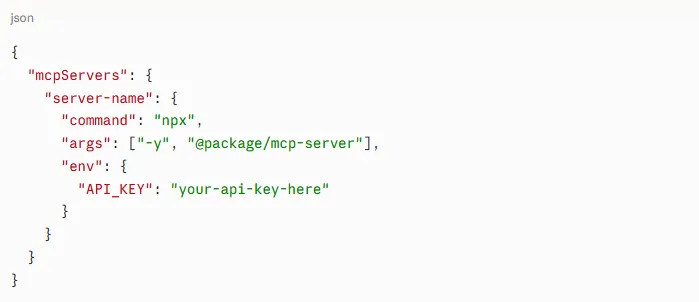
For remote SSE servers, the structure looks slightly different:
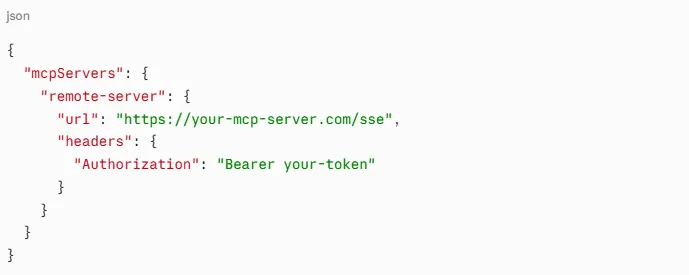
Step 3 — Add Your First MCP Server
Let’s use the GitHub MCP server as a practical example since it’s one of the most immediately useful.
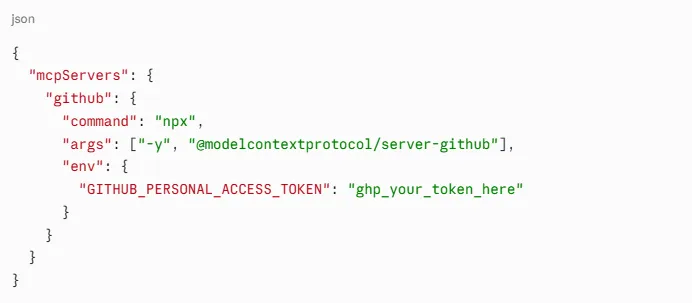
Save the file, restart Cursor, and you’ll see GitHub tools available in your AI assistant context.
Step 4 — Scaling to 100+ Servers
The beauty of MCP is that adding more servers is purely additive — you just extend the mcpServers object. Here’s a partial example with multiple servers running simultaneously:
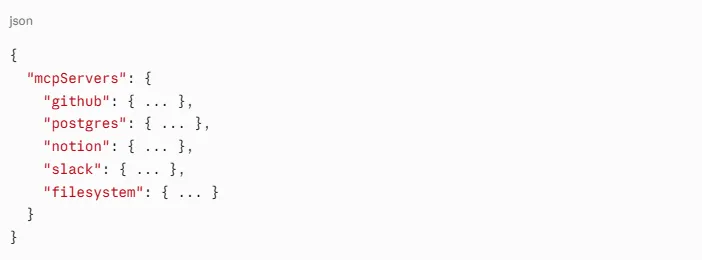
Cursor handles the orchestration. Your AI assistant will automatically know which tools belong to which server and will call the appropriate one based on context.
The 100+ MCP Servers Worth Connecting to Cursor
With the mechanics clear, let’s talk about which servers actually make a difference. The MCP ecosystem has grown rapidly — there are now hundreds of community and official servers available.
Developer Tools
- GitHub— Read repos, create issues, manage PRs
- GitLab— Same capabilities for GitLab-hosted projects
- Filesystem— Read and write local files with fine-grained control
- Git— Direct Git operations without leaving the editor
Databases
- PostgreSQL— Query schemas, run reads, introspect tables
- MySQL— Same for MySQL databases
- SQLite— Ideal for local development
- MongoDB— Document-level operations and aggregations
Productivity & Project Management
- Notion— Search pages, read databases, create content
- Linear— Manage issues and project cycles
- Jira— Read and update tickets directly from Cursor
- Asana— Task management integrated into your coding context
Communication
- Slack— Search messages, post updates, read channel history
- Discord— Community-integrated workflows
Cloud & Infrastructure
- AWS— S3 operations, CloudWatch logs, EC2 management
- Google Cloud— BigQuery, GCS, and more
- Cloudflare— Workers, KV, and edge config
AI & Data
- Brave Search— Live web search from inside Cursor
- Exa— Semantic search for research-heavy workflows
If you want a broader picture of how AI-powered coding tools are evolving alongside MCP, our overview of AI coding and design tools in 2026 covers the ecosystem in more depth.
Project-Level vs. Global MCP Configuration
One thing many developers miss is that Cursor supports two scopes of MCP configuration:
Global config (~/.cursor/mcp.json) applies to every project you open. Good for personal tools like GitHub or your primary database.
Project-level config (.cursor/mcp.json inside your project folder) applies only to that specific project. This is ideal for team environments where you want everyone working with the same MCP stack — commit this file to your repo and your teammates get the same tools automatically.
A smart pattern: keep personal auth-heavy servers in global config, and project-specific servers (like a project’s local database or specific API) in the project config.
Troubleshooting Common MCP Connection Issues
Even with a clean setup, things occasionally go wrong. Here are the most common issues and how to resolve them.
Server Not Appearing in Cursor
- Confirm your JSON is valid — a single misplaced comma breaks the entire config
- Restart Cursor completely after editing the config file
- Check the MCP logs: View → Output → MCPin Cursor’s developer tools
Authentication Failures
- Double-check that your API keys and tokens have the right scopes (e.g., GitHub tokens need repo and org permissions for full functionality)
- Ensure environment variables are correctly nested under “env”in the config
Node.js Not Found Errors
Most local MCP servers require Node.js 18 or later. Run node –version in your terminal to verify. If it’s missing or outdated, update via nvm or directly from nodejs.org.
Server Connects but Tools Don’t Work
This usually means a permissions issue on the server side, not in Cursor. Check your API key scopes, your account tier on the external service, and any rate limits.
Why MCP Changes How AI Coding Actually Works
There’s a deeper reason this matters beyond convenience. AI software fundamentally differs from traditional software in that it operates on context — the quality of what an AI can do scales directly with the quality and completeness of information it can access.
Without MCP, your Cursor assistant is working in a vacuum. It can see your code, but it can’t see the GitHub issue that spawned the feature, the Notion doc that describes the business logic, or the production database schema it needs to write a correct query against.
With MCP, context becomes complete. The model reasons across your code and your tools simultaneously — and that’s where the jump from “useful” to “genuinely transformative” happens. This is also why understanding the distinction between model-based and model-free learning approaches helps frame why richer context produces dramatically better outputs.
Frequently Asked Questions
Q: Do I need to install MCP servers separately before adding them to Cursor?
For npx-based servers, no — npx -y handles the installation automatically on first run. For Python-based servers, you’ll need to install them via pip first and reference the path in your config.
Q: Can I use MCP servers with Cursor’s free plan?
MCP server connectivity itself isn’t paywalled in Cursor — it’s a configuration feature. However, some MCP servers connect to paid third-party services (like certain Notion or Slack plans) that require their own subscriptions.
Q: Is it safe to store API keys in the MCP config file?
The global config file sits in your home directory and isn’t committed to version control by default, so it’s reasonably safe for personal keys. For team setups using project-level config, never commit real API keys — use environment variable references or a secrets manager instead.
Q: How many MCP servers can Cursor handle simultaneously?
There’s no hard limit documented by Cursor, and users regularly run 20–50 servers without performance issues. At very high counts (100+), startup time may increase slightly, but active performance is generally unaffected since servers only activate when their tools are called.
Q: Where do I find new MCP servers?
The best current directories are mcp.so, the official MCP GitHub organization, and community lists on GitHub. New servers are being published weekly across the ecosystem.
Conclusion: Build Your MCP Stack Today
The MCP server connection guide you’ve just read isn’t theoretical — every step here works today, with tools available right now. The combination of Cursor’s AI coding capabilities and MCP’s open protocol for external connections represents one of the most practical productivity levers available to developers in 2026.
Start with one server — GitHub is the obvious first choice for most developers — get comfortable with the config format, then gradually build out your stack. Within a week you’ll wonder how you ever worked without it.
For more on building smarter AI-assisted workflows, explore everything we’re covering at ThinkToShare — we’re tracking this ecosystem closely and publishing guides as it evolves.
